97%
satisfaction rate

Help centre
If you’ve generated a no-findings report, we will automatically add an unused report to your account. You can use it right away to check another vehicle.
A no-findings report that qualifies for an automatic recovery is a report that contains no historical data. This means the report does not include:
If none of this data is found, the system will automatically return the used report to your account.
To find your returned report:
1.Log in to your carVertical account
2.Click My account at the top of the website
3.Go to the Transactions section
4.Under Usage history, you will see your returned reports
Returned reports will remain active in your account for 6 months from the date the report was purchased. During this period, you can use the returned reports to check the history of any other vehicle.
If your report has been returned, you can use it to check a different vehicle:
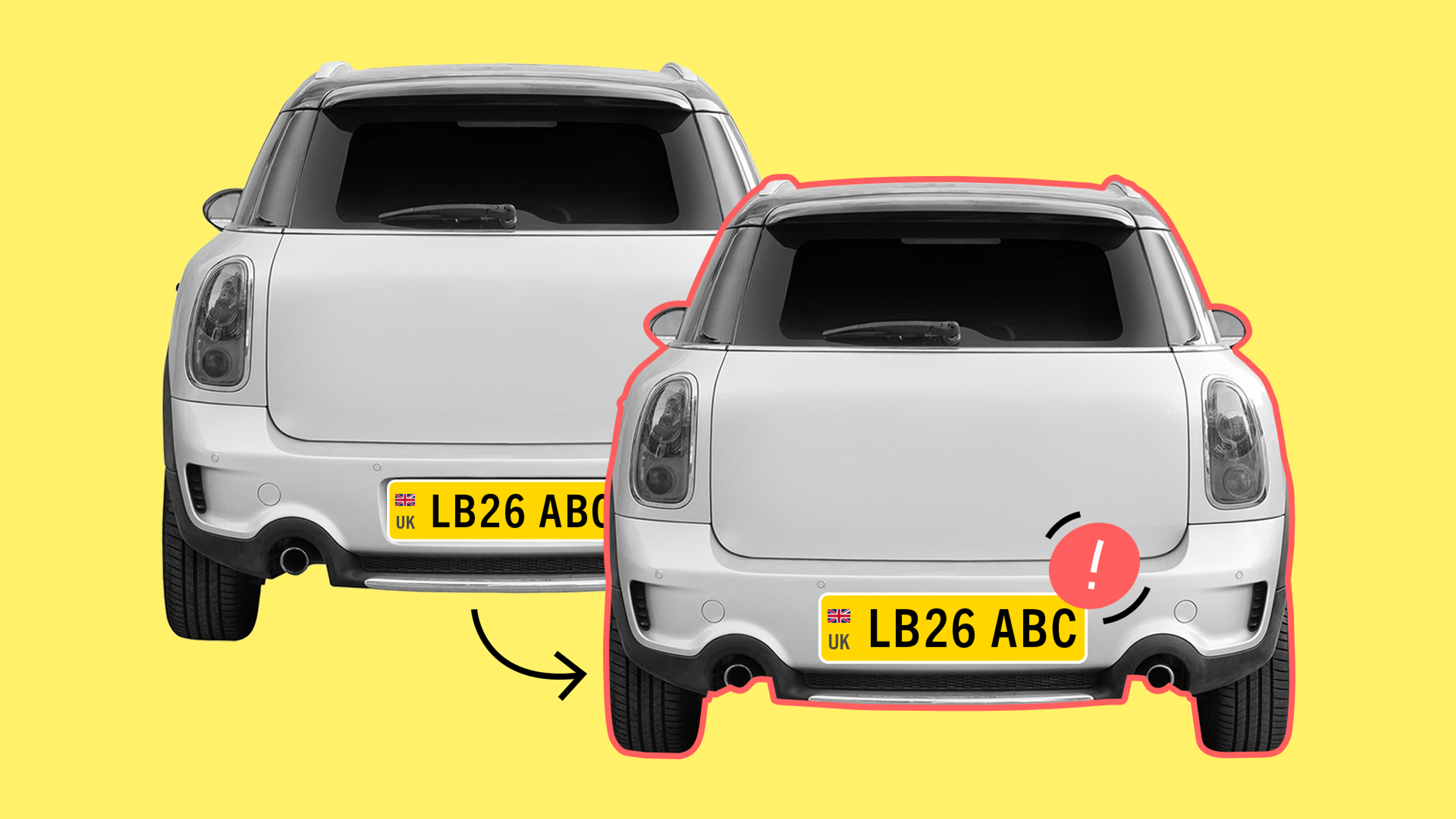
To check a vehicle’s history, you need its Reg number or a VIN – a unique 17-character code assigned to every car. You can find it on the vehicle itself (e.g., windshield, door frame, engine area) or in documents like the registration certificate.
Go to the carVertical website and click Log In at the top right corner. You can log in to your account using your email, Google, or Apple ID.
After logging in, go to the carVertical homepage (or any other page containing the Reg field) and enter the Reg into the Enter Reg field. Click Check vehicle.
Additionally, you can select the VIN option and enter the VIN in the Enter VIN field.
If you have available unused reports, the system will offer to use one of them to check the vehicle.





Get the answers you need – whenever you need them. Drop us a message and we’ll get back to you.
satisfaction rate
always available
avg. response time
Read our latest news and detailed analysis